Learn how to quickly add multiple properties and owners to MRI Vault using a CSV file. This guide walks you through file preparation, import steps, and key requirements.
This article covers:
About bulk import
Vault allows you to import multiple properties and their owners at once using a CSV file. If your data is in Excel, save it as a CSV before starting the import.
- Your file must be in CSV (Comma-Separated Values) format
- Ensure the first row contains header names
You can also review the list of available data fields for import.
Before you begin
Ensure your file meets these requirements:
- Format - CSV (Comma Separated Values)
- Headers - The first row must include column headers
-
Mandatory Columns:
- Status (e.g., Not Listed, Appraisal)
- Type (e.g., Sale or Lease)
- Classification (e.g., Residential, Commercial, Business, Land, Rural)
Import properties
Follow these steps to prepare your CSV file and complete the bulk import process in MRI Vault. Each step ensures your data is correctly formatted and uploaded without errors.
- Go to: Properties > Import
- Save your data as a CSV file
- Confirm the first row contains header names
Note: Review the
list of available data fields
for import.
- Click Choose File and select your CSV.
- Assign property access to a user or select Everyone
- Optionally, assign Marketing Contacts 1 & 2
- Choose whether to enable duplicate checking
Note: Duplicate checks ignore duplicate rows entirely. For
better
control, manage duplicates after import using MRI Vault tools.
- Click Next
Note: Only CSV files can be imported. If you upload a file in an unsupported format, Vault will display an error message when you click Next, prompting you to upload a valid CSV file before you can continue.
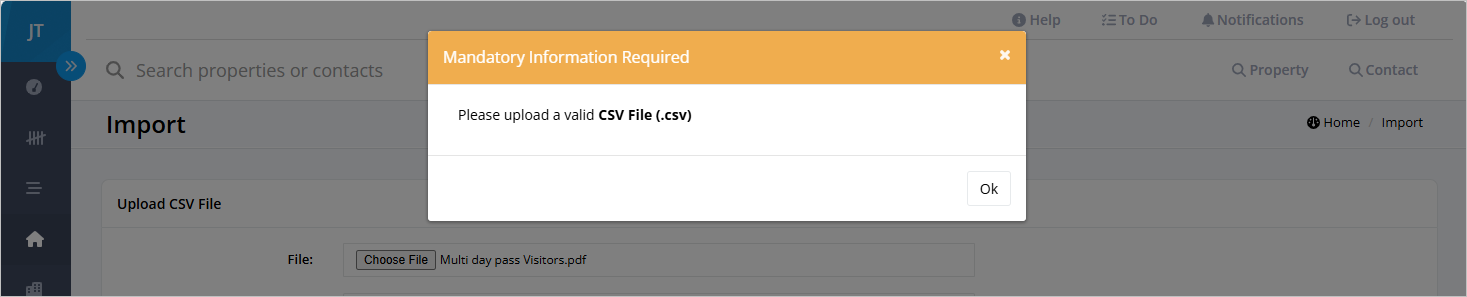
- If you see an error, correct your file and re-upload
- Match each CSV header to the corresponding Vault field (e.g., first name → First Name)
- Ignore fields you don’t want to import
Tip: Ensure property fields are correctly mapped and not
confused with client contact details. Property fields can be selected from
the section named “property (attached to this contact)”.
- Click Import Now
A confirmation screen will appear, and you’ll receive an email once the import is successful.
Note: You can delete or reverse an import within
48 hours via the import tool by clicking
Delete next to the desired import.