Learn how to manage application access, user permissions, and branding for your agency using MRI Agora Control Hub.
This article covers:
- About MRI Agora Control Hub
- Access MRI Agora Control Hub
- View and manage applications
- Add custom applications
- Manage administrators
- Manage users
- Select company logo
About MRI Agora Control Hub
Agora Gateway administrators now have extra features to help manage and control access to your agency's applications.
You can set up and assign default application tiles in Agora Gateway to make onboarding easier for your staff; no complicated setup required. Once set up, you can update applications and immediately apply those changes across your entire agency.
MRI Agora Control Hub also allows administrators to help users with access issues, including password resets, multi-factor authentication and account access through Agora Gateway.
Access MRI Agora Control Hub
All users will have access to Agora Gateway; however, only designated administrators will have permission to administer it.
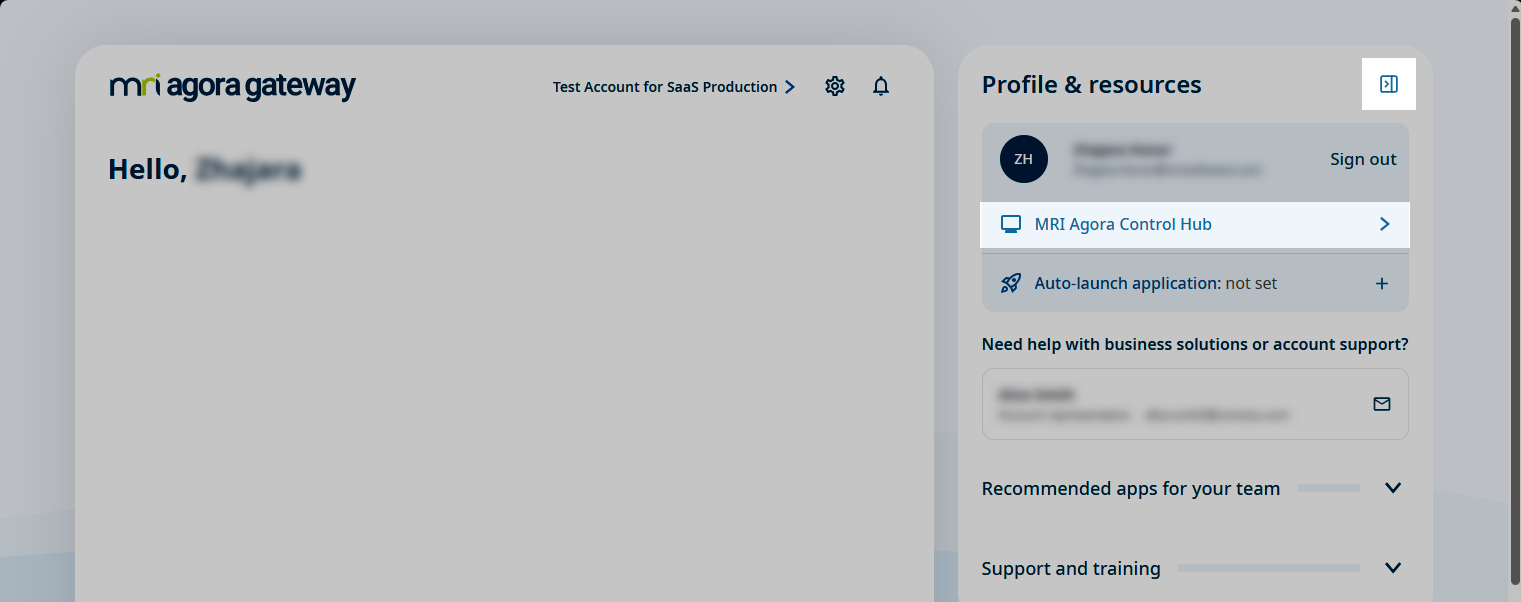
To access MRI Agora Control Hub for users who have permissions, log into Agora Gateway, then:
- Open the Account or Profile & resources menu
- Click MRI Agora Control Hub
View and manage applications
The Applications page displays all applications available to your company. MRI products are preconfigured and automatically displayed, while custom applications can be added and managed as required.
Use the search fields and filters to locate a specific application.
Select an application from the list to view its details, including the application type, URL, visibility settings, and user assignments.
The 'Users assigned to application' section displays all users within your company.
Select the checkbox next to a user to assign the application available in their Gateway.
Clear the checkbox to remove access.
You can also use the 'Assign all' and 'Unassign all' options to manage access in bulk.
The 'Show for new users' toggle determines whether newly created users are automatically assigned access to the application.
Add custom applications
Custom applications can be added to Agora Gateway, alongside the preset MRI products. This may include partner applications and other useful links.
To add a custom application:
- Click the Agora gateway icon on the side toolbar
- Click Applications
- At the top right of the screen, click + Add new application
- Select the application type:
- Client-defined application - Add custom applications and useful links for your users
- Portal application - Add applications provided by a partner
- Partner application - Add portal applications available to your users
- Enter the application details - Complete the name, URL, and Description fields
-
Select an application icon -
- Click Edit icon
- Select a file from your computer, or
- Tick Use text caption radio button, enter a caption, and select a colour
- Once complete, click Save
Assign users to the application using one of the following options:
- Enable Assign all to assign the application to all users
- Select the checkbox next to individual users to assign the application only to specific users
To remove access from a user, clear the user's checkbox.
- Review the selected users and click Save
- Click Save
Repeat this process to add additional custom applications to the gateway.
Manage administrators
Administrators can be managed from the User details page in Access Management.
To assign or remove administrator permissions:
- Click the Access Management icon on the side toolbar
- Click Users
- Select a user from the user list
- On the User details page, locate Assigned roles
- Click Manage roles
- Assign or remove the appropriate administrator role for the user
- Click Apply
Manage users
Manage applications for each user
Application access can be managed for individual users from the Assigned applications section of the User details page.
- Click the Access Management icon on the left navigation pane
- Click Users
- Select a user from the user list
In the Assigned applications section, manage the user's application access:
- To grant access to an individual application, enable the application's toggle
- To remove access from an individual application, disable the application's toggle
-
Bulk applications -
- In the Assigned applications section, click Select all
- Click Move to hidden to hide all selected applications
To restore hidden applications, select the Hidden tab
- Click Select all
- Move the selected applications back to Showing
Hiding an application tile does not necessarily remove the user's underlying access to the associated product or service. It only controls whether the application is displayed in Agora Gateway.
Select company logo
A custom logo can be displayed on the MRI Agora Gateway home page for all users. The custom logo replaces the default MRI Agora Gateway logo.
- Click the Agora gateway icon
- Click Applications
- Select Display Settings
- In the Client logo section, click Edit
- In the Edit display logo panel, select Use company logo
- Click Select file... and choose an image from your computer, or drag and drop the image into the upload area
- Click Save